In 2026, standing out on LinkedIn is no longer just about what you say — it’s about how you say it. Whether you’re a marketer, entrepreneur, or content creator, the way your post looks visually can make the difference between a scroll and a click. That’s where a LinkedIn Text Formatter comes into play.
This complete guide will show you how to use a LinkedIn Text Formatter effectively, why formatting matters, and which tools can help you create posts that grab attention, boost engagement, and strengthen your personal brand.
What Is a LinkedIn Text Formatter?
A LinkedIn Text Formatter is an online tool or generator that lets you add bold, italic, underlined, or styled text to your LinkedIn posts, bios, or comments.
Since LinkedIn doesn’t provide built-in formatting options like other social platforms, users rely on these tools to enhance readability, highlight key points, and make content visually appealing.
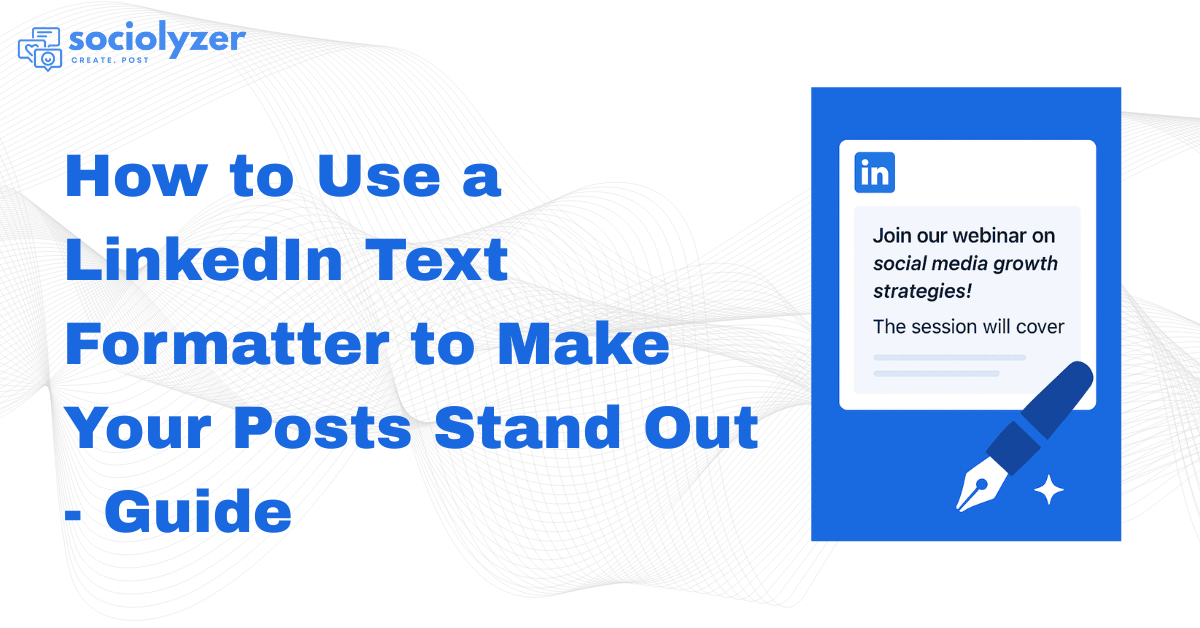
For example, using a text formatter, you can turn:
“Join our webinar on social media growth strategies!”
into
Join our webinar on social media growth strategies!
Simple formatting tweaks like these make your posts more readable and visually engaging.
Why Formatting Matters on LinkedIn
LinkedIn’s algorithm rewards engagement and dwell time — meaning the longer users spend reading your post, the better your reach. Well-formatted text helps achieve this.
Here’s why formatting is essential:
1. Improves Readability
Walls of text scare readers away. Breaking content into bold sections or bullet points helps people skim easily.
2. Highlights Key Messages
A bold or italic phrase draws attention to what truly matters — your call-to-action, achievements, or data points.
3. Enhances Professional Appeal
Clean formatting signals attention to detail. In a professional network like LinkedIn, that impression matters.
4. Boosts Engagement
Posts with clear structure and formatted text often get more likes, comments, and shares, as users find them easier to digest.
How to Use a LinkedIn Text Formatter (Step-by-Step)
Let’s walk through the process of formatting your next LinkedIn post.
Step 1: Write Your Post Normally
Start by writing your content in plain text — focus on the message first. Don’t worry about bold or italics yet.
Step 2: Open a LinkedIn Text Formatter Tool
Use an online tool such as:
- LingoJam LinkedIn Text Formatter
- YayText
- Unicode Text Converter
- BoldText.io
These tools let you type or paste your content, then instantly preview it in various text styles.
Step 3: Format the Text You Want to Highlight
Select words or phrases you want to emphasize — such as headlines, statistics, or CTAs — and convert them into bold or italic styles.
For example:
- Bold for main ideas or titles
- Italics for quotes or subtle emphasis
- Emojis for visual breaks and tone
Step 4: Copy and Paste into LinkedIn
Once your text is formatted, simply copy it and paste it into your LinkedIn post editor, message, or “About” section.
The Unicode characters used by these formatters work natively on LinkedIn, so they’ll appear perfectly to everyone viewing your profile or post.
Step 5: Preview Before Posting
Double-check how it looks on both desktop and mobile. Sometimes Unicode fonts render slightly differently depending on devices.
Best Practices for Using LinkedIn Text Formatter
Formatting should enhance your post — not overwhelm it. Here are best practices for professionals:
1. Use Formatting Sparingly
Overusing bold or fancy fonts can make posts look cluttered or spammy. Keep it professional — highlight only key phrases.
2. Keep Fonts Readable
Stick with simple Unicode fonts that look native to LinkedIn. Avoid overly decorative or hard-to-read symbols.
3. Combine Formatting with Structure
Use headings, bullet points, and white space. This helps readers scan your post faster.
Example:
Tips to Grow on LinkedIn:
- Post consistently (3–4x per week)
- Use clear CTAs
- Format your text for readability
4. Match Tone with Formatting
For educational or thought-leadership posts, subtle formatting works best. For promotional content, bold text can highlight offers effectively.
5. Test Different Styles
Use analytics or tools like Sociolyzer to track engagement performance. Experiment with formatting styles to see what attracts more likes, clicks, and comments.
Top LinkedIn Text Formatter Tools for 2026
Here’s a quick list of the best LinkedIn Text Formatter tools available in 2026 — tested for reliability and design compatibility.
| Tool Name | Features | Pricing | Best For |
|---|---|---|---|
| YayText | Bold, Italic, Underline, Emojis | Free | Quick formatting |
| LingoJam LinkedIn Text Formatter | Unicode fonts, copy-paste ready | Free | Profile bio formatting |
| BoldText.io | Rich text preview, clean UI | Free | Marketing posts |
| CoolFancyText | Multiple font styles | Free | Creative posts |
| Unicode Text Converter | Universal compatibility | Free | Multilingual formatting |
Each of these tools is user-friendly and can help you transform your plain LinkedIn post into a visually engaging, scroll-stopping piece.
LinkedIn Formatting Tips for Professionals
Here are some simple yet powerful formatting habits that improve visibility and engagement on LinkedIn:
- Start with a Hook Line — Use bold text or emojis to make your first line pop.
- Use Short Paragraphs — Keep paragraphs under 3 lines.
- Add Line Breaks — White space increases readability.
- Use Lists or Bullet Points — Helps readers quickly digest information.
- Highlight CTAs — Make “Follow me for more tips” or “Join the webinar” stand out using bold or emojis.
- Tag Relevant People and Pages — Encourage more engagement organically.
Example of a Well-Formatted LinkedIn Post
Title:
5 Marketing Lessons I Learned in 2026
Body:
- Always prioritize authentic storytelling over sales pitches.
- Use data-driven insights to guide every campaign.
- Build consistency — one good post is great, but a consistent voice wins.
- Engage with your audience genuinely.
- Keep learning — digital trends evolve every month.
CTA:
Follow me for more insights on social media growth and engagement!
This post structure works because it’s visually balanced, readable, and professionally styled — exactly what a LinkedIn Text Formatter helps you achieve.
LinkedIn Formatting Across Platforms
Formatting doesn’t end with LinkedIn. Once you master this skill, you can replicate similar visual strategies across other platforms.
For instance:
- On Instagram, you use creative visuals — see Top Instagram Reels Trends to Watch in 2025.
- On Stories, you focus on design — check Step-by-Step Guide: How to Customize Instagram Story Templates for Your Business.
Learning how to style your LinkedIn posts aligns perfectly with creating cohesive brand visuals across all your channels.
How LinkedIn Text Formatter Impacts Engagement
Here’s the real reason every marketer should care about formatting — it boosts engagement metrics.
1. Increased Dwell Time
Readable, visually structured posts keep users scrolling longer, which the LinkedIn algorithm rewards.
2. Higher Click-Through Rates
Bold CTAs guide the reader’s eye to links or resources you share.
3. Enhanced Brand Recall
When users consistently see clean, formatted content from you, they associate it with professionalism and trust.
4. Better Performance Analytics
Using tools like Sociolyzer, you can track how formatting affects impressions, reactions, and post reach — giving you data to refine your strategy.
Final Thoughts
In today’s crowded LinkedIn feed, clarity, creativity, and structure win attention. Using a LinkedIn Text Formatter is a small step that creates a big impact — helping your posts look professional, readable, and memorable.
If you’re serious about growing your personal brand or boosting company visibility, mastering text formatting is a must-have skill for 2026 and beyond.
Ready to make your LinkedIn posts stand out? Start experimenting with a text formatter today — and analyze your post performance using Sociolyzer to see real engagement growth.