Remember when Instagram only let you post one photo at a time? Those days are long gone. Instagram carousels have become one of the most popular ways to share content on the platform, and honestly, once you start using them, there’s no going back.
If you’ve been scrolling through your feed and noticed posts where you can swipe through multiple images, that’s a carousel post. They’re everywhere now, and for good reason. Let me walk you through everything you need to know about creating and posting Instagram carousels in 2026.
What Exactly Is an Instagram Carousel?
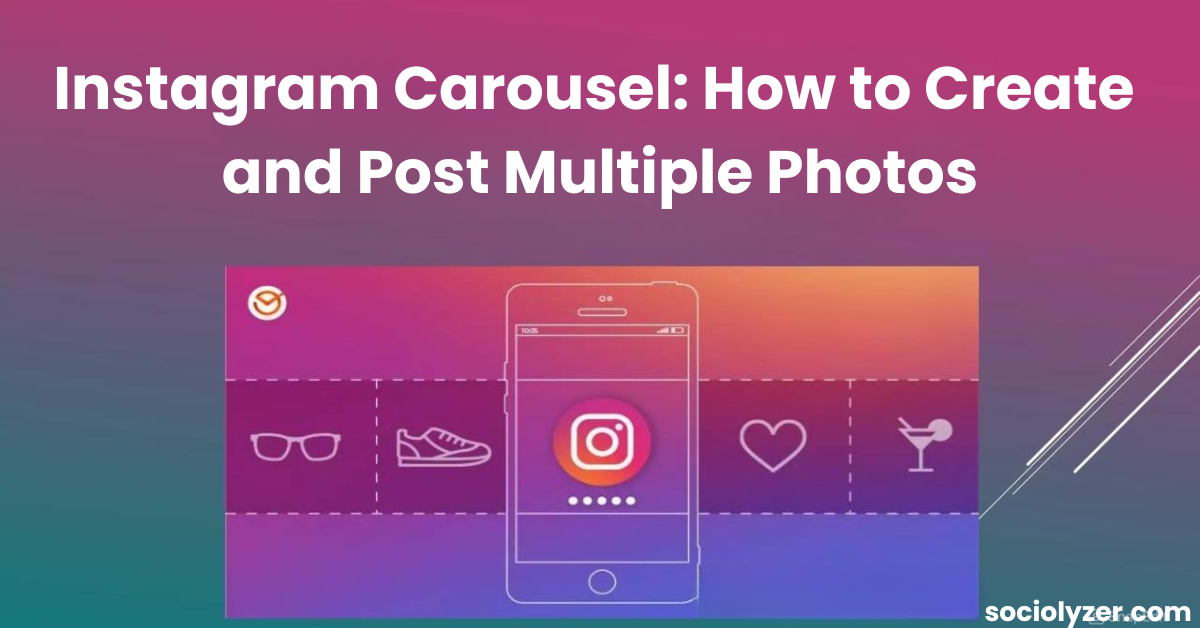
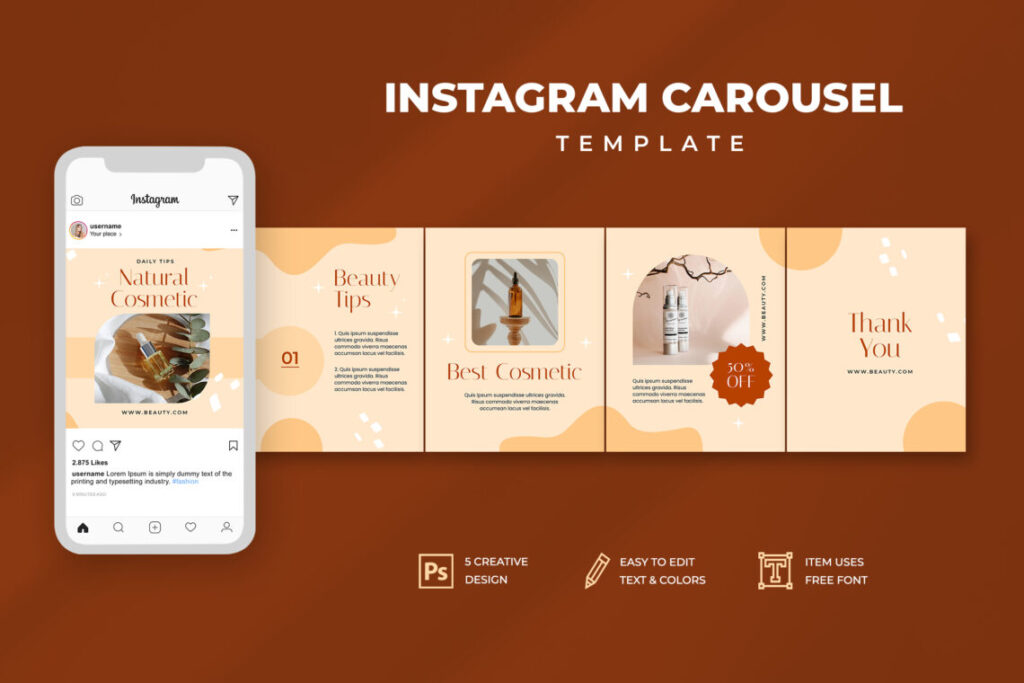
An Instagram carousel is a post that contains multiple images or videos that users can swipe through. Think of it like a mini photo album within a single post. You’ll notice these posts by the small dots or the layered icon in the top right corner of the image.
The beauty of carousels is that they tell a story. Instead of flooding your followers’ feeds with five separate posts about your weekend trip, you can bundle them into one cohesive post. Your followers get the full narrative, and your engagement often gets a nice boost too.
Why You Should Be Using Instagram Carousels
They boost engagement. When someone swipes through your carousel, Instagram counts that as engagement. More swipes mean more interaction, which tells Instagram your content is valuable. I’ve noticed my carousel posts consistently get better reach than single images.
They’re perfect for storytelling. Got a before-and-after transformation? A step-by-step tutorial? Multiple angles of the same outfit? Carousels let you show the full picture without overwhelming your feed.
People actually save them. Tutorial carousels and educational content get saved like crazy. Those saves are gold for your engagement rates.
How to Create an Instagram Carousel: Step-by-Step
Step 1: Open Instagram and Start a New Post
Open the Instagram app and tap that plus icon (+) at the bottom center of your screen. You’ll see several options—choose “Post.”
Step 2: Select Multiple Images
Now you can select up to 10 photos or videos. They’ll be numbered in the order you select them, so think about your storytelling sequence. You can always rearrange them later by holding and dragging each image.
Step 3: Edit Your Photos (Optional)
After selecting your images, tap “Next.” You’ll be taken to the filter screen where you can edit each photo individually or apply the same filter to all of them. My advice? Keep a consistent editing style across all images in your carousel. It looks more professional and cohesive.
You can crop, adjust brightness, add filters, or whatever else you need. Just remember that all images will be cropped to the same aspect ratio—Instagram doesn’t let you mix square, portrait, and landscape orientations in the same carousel anymore.
Step 4: Write Your Caption
This part matters more than you might think. Your caption should work with your carousel, not against it. Consider starting with a hook that makes people want to swipe. Something like “Wait until you see slide 3” or “Swipe to see the transformation” works wonders.
Use your primary keywords naturally in the caption. Add relevant hashtags, but don’t go overboard. Around 5-10 targeted hashtags typically perform better than 30 random ones.
Step 5: Tag People and Add Location
If you’re featuring other accounts or collaborating with someone, tag them in the relevant photos. Adding a location can also boost your visibility since people often search by location.
Step 6: Share Your Carousel
Hit “Share” and you’re done! Your carousel is now live on your profile.
Pro Tips for Better Instagram Carousels
After posting hundreds of carousels, I’ve learned a few tricks that make a real difference:
Lead with your strongest image. The first photo is what people see in their feed. Make it count. Use something eye-catching that makes them want to swipe.
Use the last slide strategically. Many creators put a call-to-action on the final slide. Something like “Follow for more tips” or “Save this for later” with a simple graphic.
Mix content types. You can combine photos and videos in the same carousel. A video in the middle of your carousel can boost engagement even more.
Tell a complete story. Don’t just throw random images together. Have a narrative arc. Take your audience on a journey from slide 1 to slide 10.
Keep text minimal on images. If you’re adding text overlays, keep them clean and readable. Too much text makes images look cluttered.
Common Mistakes to Avoid
We all make mistakes when we’re learning. Here are the ones I see most often:
Don’t use low-quality images just to fill space. If you only have six great photos, post six. Quality beats quantity every time.
Avoid inconsistent editing styles within the same carousel. If slide 1 is bright and airy, don’t make slide 5 dark and moody. It’s jarring.
Don’t forget to preview your carousel before posting. Instagram lets you see exactly how it’ll look. Use that feature.
Final Thoughts
Instagram carousels have become one of the most powerful content formats on Instagram in 2026. They help you share more value without cluttering your feed and keep people engaged through swipes, saves, and shares. When done right, a single carousel can outperform multiple single-image posts. If you want better reach, stronger storytelling, and higher engagement, carousels are worth using consistently.